
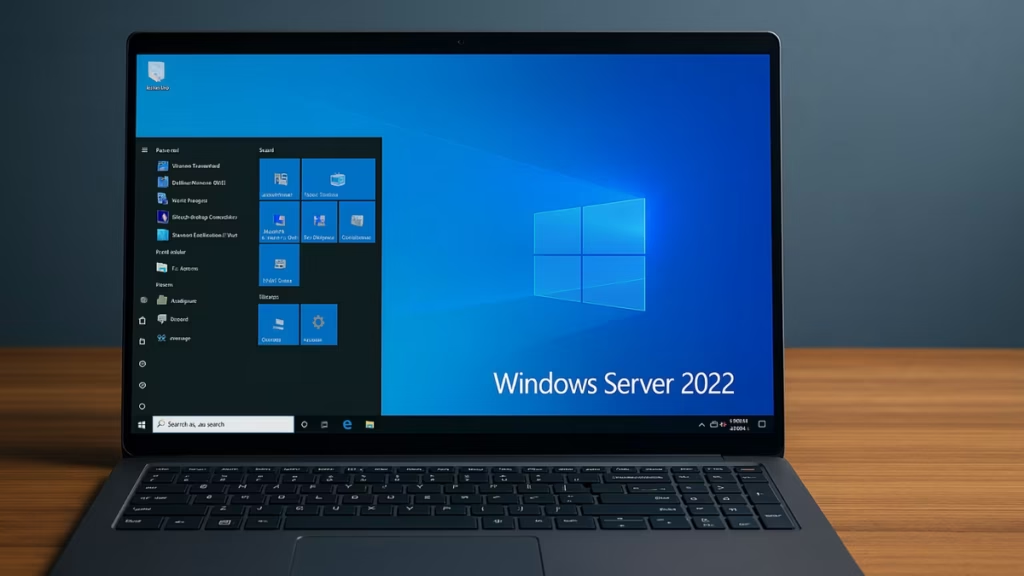
When upgrading an old Active Directory (AD) environment, many admins face challenges promoting a new Windows Server 2022 Domain Controller within an existing Windows Server 2008 R2 forest. This guide explains every step—from preparation and AD replication to DNS, DHCP, and file/print role migration—so you can perform a clean and safe transition.
Before You Begin: Understand Your Setup
You currently have:
- A Windows Server 2008 R2 acting as Domain Controller (DC), DNS, DHCP, File, and Print server.
- Domain and forest functional levels at Windows Server 2008 R2.
- Your goal is to:
- Promote Windows Server 2022 to a Domain Controller.
- Migrate DNS and DHCP roles.
- Set up a second Server 2022 for File and Print services.
- Demote the old 2008 R2 server safely.
Step 1: Pre-Migration Preparation
Before promoting your Windows Server 2022, it’s essential to prepare your environment properly.
1. Verify Domain Health
Run the following commands on the 2008 R2 DC:
dcdiag /v
repadmin /replsummary
These commands confirm that replication and AD services are functioning correctly.
2. Check SYSVOL Replication
Ensure SYSVOL uses DFS-R (Distributed File System Replication), not FRS (File Replication Service):
dfsrmig /getglobalstateIf it shows 0 (start), migrate to DFS-R:
dfsrmig /setglobalstate 3
dfsrmig /getmigrationstate
3. Backup Critical Data
- System State Backup (using Windows Server Backup)
- DNS Zones Export
- DHCP Export:
netsh dhcp server export C:\dhcp_backup.txt allStep 2: Install and Promote Windows Server 2022 to Domain Controller
1. Join the Domain
- Join the Windows Server 2022 to your existing domain.
- Assign a static IP address.
- Set the Preferred DNS to point to the 2008 R2 DC.
2. Install AD DS and DNS Roles
Open PowerShell and run:
Install-WindowsFeature AD-Domain-Services, DNS -IncludeManagementTools3. Promote to Domain Controller
Use:
Install-ADDSDomainController `
-DomainName "yourdomain.local" `
-InstallDNS:$true `
-Credential (Get-Credential)
Restart the server when prompted.
4. Verify AD Replication
After reboot:
dcdiag /v
repadmin /replsummary
Replication should succeed without errors.
Step 3: Transfer FSMO Roles
FSMO (Flexible Single Master Operations) roles should be moved to the new server:
netdom query fsmo
Move-ADDirectoryServerOperationMasterRole -Identity "WS2022-DC" -OperationMasterRole 0,1,2,3,4
Verify transfer:
netdom query fsmoStep 4: Migrate DNS and DHCP Services
DNS Migration
DNS data automatically replicates with AD. Check:
- Zones exist on the new DC.
- Forwarders and Root Hints match the old server.
- Clients resolve names successfully.
DHCP Migration
- Export from 2008 R2:
netsh dhcp server export C:\dhcp.txt all- Install DHCP on 2022:
Install-WindowsFeature DHCP -IncludeManagementTools- Import on 2022:
netsh dhcp server import C:\dhcp.txt all- Authorize DHCP:
Add-DhcpServerInDC -DnsName "WS2022-DC.yourdomain.local" -IpAddress <2022_IP>Step 5: Migrate File and Print Services
You can use Storage Migration Service (SMS) via Windows Admin Center, or perform manual migration.
Option 1: Storage Migration Service
- Open Windows Admin Center → Storage Migration Service.
- Add source (2008 R2) and destination (2022) servers.
- Copy all shares, permissions, and security settings.
Option 2: Manual Migration
Use Robocopy:
robocopy \\oldserver\share \\newserver\share /E /COPYALL /R:2 /W:5 /LOG:C:\migration.logPrint Server Migration
- On 2008 R2:
- Open Print Management → Export Printers to File.
- On 2022:
- Import Printers from File via Print Management.
Step 6: Validate and Test
Before demoting the old DC:
- Check replication with
repadmin /showrepl. - Confirm DNS/DHCP logs are clean.
- Verify user logins and GPOs apply correctly.
- Test file/print access from client systems.
Step 7: Demote the Windows Server 2008 R2 Domain Controller
On the old server:
- Run:
dcpromo - Uncheck “This server is the last domain controller in the domain”.
- Reboot.
Then:
- Remove AD DS role from Server Manager.
- Deauthorize old DHCP:
netsh dhcp delete server <oldservername> <oldserverIP>- Clean up from AD Sites and Services.
Step 8: Raise Domain and Forest Functional Levels (Optional)
Once the 2008 R2 DC is removed:
- Open Active Directory Domains and Trusts.
- Right-click the domain → Raise Forest Functional Level → Windows Server 2022.
Step 9: Final Checklist
| Task | Tool / Command | Verification |
|---|---|---|
| Promote DC | Install-ADDSDomainController | dcdiag, repadmin |
| Transfer FSMO Roles | Move-ADDirectoryServerOperationMasterRole | netdom query fsmo |
| Migrate DHCP | netsh dhcp export/import | Validate leases |
| Migrate DNS | DNS Manager | Test name resolution |
| File Migration | Robocopy or SMS | Verify share access |
| Print Migration | Print Management | Test print queues |
| Demote 2008 R2 | dcpromo | Old DC removed |
| Raise Functional Level | AD Domains & Trusts | Forest updated |
Best Practices to Maintain a Healthy Active Directory
To maintain stability:
- Keep System State backups for all DCs.
- Regularly monitor replication using:
repadmin /replsummary - Document DNS/DHCP configurations after migration.
- Test new DC failover periodically.
Migrating from Windows Server 2008 R2 to Windows Server 2022 is a significant but manageable upgrade. Following this structured process ensures your new AD environment remains secure, stable, and ready for modern workloads.
For more Windows Server upgrade and troubleshooting guides, visit our Windows Fix section.
![Locked Out of Microsoft 365 Global Admin Account Due to MFA (Error 500121) [7 Fixes]](https://winfix.fdaytalk.com/wp-content/uploads/2025/10/gy6jh-150x150.avif)