Windows 11 comes with a powerful built-in defense system known as Windows Security — previously called Windows Defender. Unlike older Windows versions that required third-party antivirus tools, Microsoft now bundles a complete protection suite that monitors your PC in real time, keeping it safe from malware, phishing, and ransomware attacks.
How to Access Windows Security in Windows 11
There are two quick ways to open it:
- Via Settings
- Go to Start → Settings → Privacy & Security → Windows Security → Open Windows Security
- Via Search Bar
- Type “Windows Security” in the search box on your taskbar and click the app from the results.
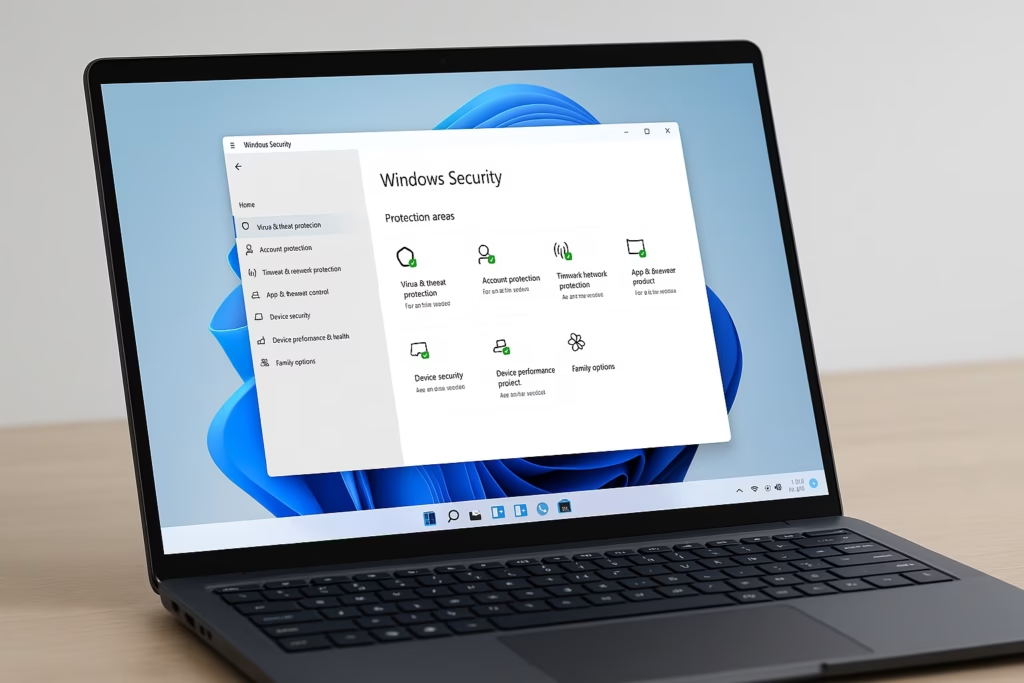
Once opened, you’ll see a dashboard with seven main sections — each responsible for a different aspect of system protection.
1. Virus & Threat Protection
This is your first line of defense against malicious software. It handles all scanning operations and real-time virus protection.
Available Scans:
- Quick Scan: Checks common threat locations.
- Full Scan: Scans every file and app on your PC (recommended weekly).
- Custom Scan: Targets specific folders or drives.
- Microsoft Defender Offline Scan: Restarts your PC and scans before Windows loads — great for removing deep malware infections.
You can also manage Ransomware Protection here by enabling Controlled Folder Access, which blocks unauthorized apps from changing protected files.
2. Account Protection
Your login security matters as much as your system’s safety. The Account Protection tab helps you secure how you sign in to your device.
- Set up Windows Hello (Face ID, Fingerprint, or PIN) for password-free access.
- Enable Dynamic Lock to automatically lock your device when you walk away (works via Bluetooth).
- Review your Microsoft Account sign-in status to ensure it’s properly protected.
3. Firewall & Network Protection
The Firewall is one of Windows Security’s strongest defenses, silently filtering incoming and outgoing network traffic.
Here’s what you can manage:
- Enable or disable firewalls for Domain, Private, and Public networks.
- Allow trusted apps through the firewall.
- Review network connections and view notifications for blocked programs.
If your PC is part of a home network or uses public Wi-Fi, keeping this firewall active is essential.
4. App & Browser Control
This area uses Microsoft’s SmartScreen technology to protect you online and while installing apps.
You can:
- Enable Reputation-based Protection to detect unwanted or harmful apps.
- Turn on SmartScreen for Microsoft Edge to block phishing and malicious downloads.
- Manage Exploit Protection settings for advanced threat prevention.
Essentially, this feature acts as a digital gatekeeper whenever you browse or install new software.
5. Device Security
Beyond software protection, Device Security focuses on hardware-level defenses.
It monitors:
- Core Isolation – isolates sensitive processes for extra protection.
- Secure Boot – ensures only trusted software loads during startup.
- TPM (Trusted Platform Module) – used for encryption and Windows Hello.
If you see all green checks here, your system’s hardware protection is fully active.
6. Device Performance & Health
This tab gives you a quick summary of your system’s condition.
It reports:
- Storage capacity and issues.
- Battery health on laptops.
- Windows Update status.
- Startup and driver performance.
You can also perform a Fresh Start, which reinstalls Windows while keeping your personal files intact — useful for troubleshooting lag or corruption.
7. Family Options
This connects your PC to Microsoft Family Safety, a parental control suite that helps manage child accounts.
Features include:
- Activity reports on browsing and app use.
- Screen time limits.
- Location tracking for family-linked devices.
It’s especially useful for families sharing one PC or managing children’s online habits.
Do You Need Another Antivirus?
For most users, Windows Security is enough. It offers strong real-time protection, integrates with Windows Update, and has excellent threat detection rates.
However, if you want premium tools like VPNs, password managers, or identity monitoring, you can consider third-party solutions like Bitdefender, Norton, or Kaspersky — but never install two antiviruses at once.
See also: Fix Windows 10 ESU Activation Error 0x80041002 — Error Connecting to Local Registry
Windows Security on Windows 11 is one of the most robust free antivirus systems available today. It runs quietly in the background, requires no subscription, and is tightly integrated with Microsoft’s update ecosystem — ensuring your PC remains protected without slowing it down.
With a few quick settings tweaks, you can rely entirely on Windows Security for safe browsing, data protection, and long-term performance stability.