If your Windows VPN client never connects on the first attempt—even though you approve the Microsoft Authenticator prompt—you’re not alone. Many users have reported this issue when using L2TP/IPsec VPNs with EAP-MSCHAPv2 authentication and MFA via Microsoft Authenticator. Let’s break down what causes it and how to fix it.
What Causes the VPN to Hang After MFA Approval
When connecting to an L2TP/IPsec VPN, Windows often tries to log in automatically using your current Windows account credentials. Here’s what happens:
- You click Connect on the VPN client.
- The Microsoft Authenticator app prompts approval on your phone.
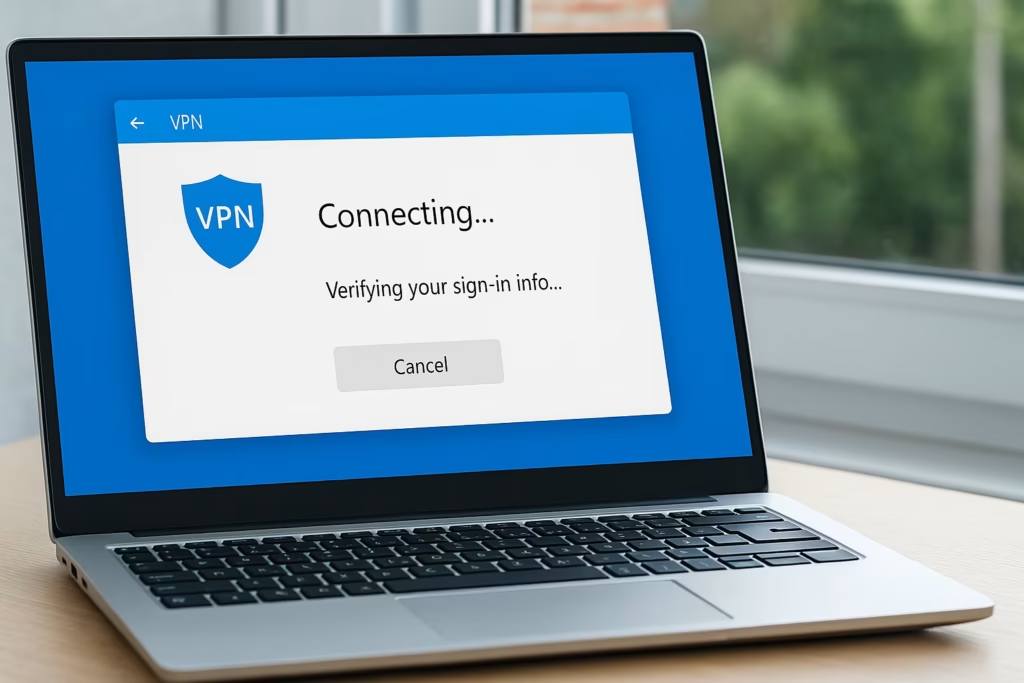
- You approve it—but the VPN connection stays stuck on “Verifying your sign-in info…”
On the second attempt, after you manually type your credentials, the connection succeeds.
This happens because Windows reuses your signed-in credentials by default, sending them to the VPN server in a format that doesn’t match what your RADIUS/NPS server expects (for example, it sends DOMAIN\user when it expects [email protected]).
Step-by-Step Fix (Windows 10 / 11)
1. Open the VPN Connection Settings
- Press Windows + R, type
ncpa.cpl, and hit Enter. - In Network Connections, right-click your VPN connection → Properties.
- Go to the Security tab.
2. Edit Authentication Settings
- Under Type of VPN, select L2TP/IPsec with pre-shared key or certificate (whichever your setup uses).
- In the Authentication section, select Microsoft: Secured password (EAP-MSCHAP v2) or your configured EAP method.
- Click Properties.
- Uncheck: “Automatically use my Windows logon name and password (and domain if any)”
- Click OK to save.
3. Reconnect and Enter Credentials Manually
- Disconnect any existing VPN session.
- Reconnect the VPN.
- Enter your full username (example:
[email protected]) and password. - Approve the Authenticator prompt when it appears.
This time the VPN should connect instantly without hanging.
Optional Checks for L2TP/IPsec Reliability
If the above doesn’t fully fix the issue, verify the following network and registry items:
| Setting | Description |
|---|---|
| Ports | Ensure UDP 500, UDP 4500, and UDP 1701 are open. |
| Registry key | HKLM\SYSTEM\CurrentControlSet\Services\PolicyAgent\AssumeUDPEncapsulationContextOnSendRule = 2 (needed for NAT-T). |
| Services | “IKE and AuthIP IPsec Keying Modules” and “IPsec Policy Agent” must be running. |
(To edit registry values: run regedit as admin → navigate to key → right-click → Modify.)
By disabling the “Automatically use Windows logon credentials” option, you prevent Windows from sending cached credentials that don’t match the identity required by your RADIUS or Azure MFA setup.
When you manually type your credentials, the system performs the correct EAP handshake, and MFA approval completes smoothly on the first try.
Pro Tip for IT Admins
If you deploy VPN profiles via Intune or Group Policy, ensure the EAP configuration in your XML or profile template also disables auto-use of Windows credentials. This prevents the “first-try fail” issue across all clients.
If your Windows L2TP/IPsec VPN always fails on the first attempt but connects on the second, the culprit is usually Windows reusing cached credentials.
Read More:
- How to Fix Windows 11 Update Error 0x800f0983 (KB5066835 Installation Failed)
- Microsoft Store Not Downloading or Installing Apps? 11 Proven Fixes for Windows 10/11
- How to Fix Windows 10 Commercial Device Error and Missing ESU Enroll Option
- How to Fix MSI Raider GE78 HX Scratching Noise and Freezing Issues in Windows 11
- Fix: Windows 10 “Email Already in Use” When Switching to Microsoft Account
Turn off that option, re-enter your details manually, and your VPN will connect in a single shot every time.