If you recently submitted a quota increase request for the GPT-5 model in Azure AI Foundry and haven’t received a response from Microsoft, you’re not alone. Many developers and organizations face this delay — especially for new or limited-availability models like GPT-5.
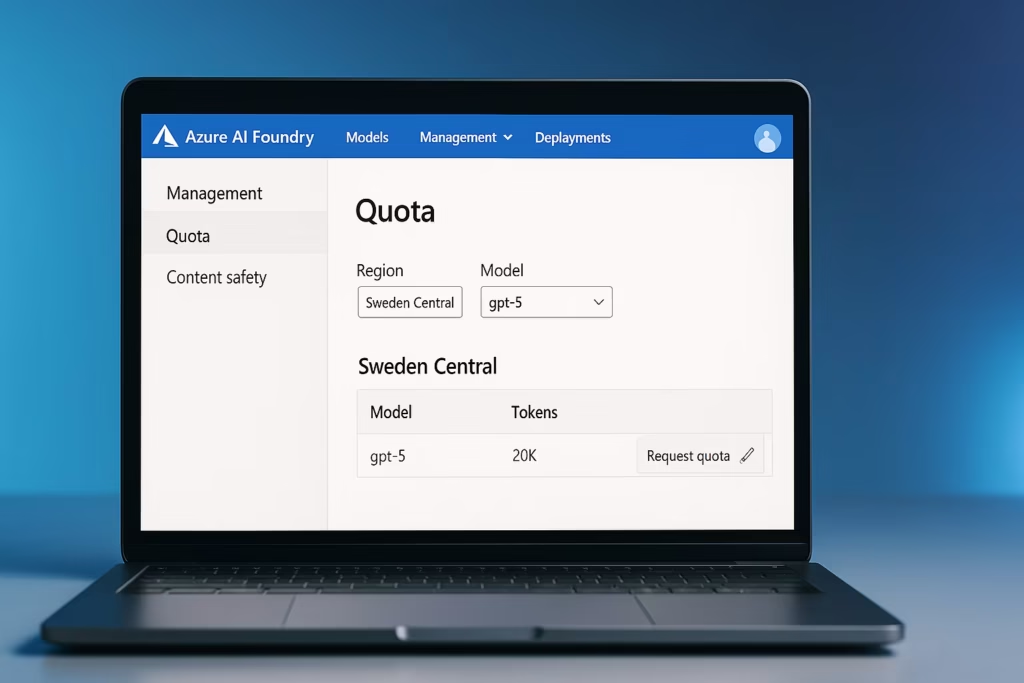
Why the Quota Increase Request for GPT-5 Is Unanswered
Microsoft often takes time to process quota requests due to the following reasons:
- High Demand for GPT-5:
- Since GPT-5 is a high-capacity model, requests for new quotas are queued by region and priority.
- Insufficient Usage Evidence:
- Requests from accounts that haven’t fully used their current 20K-token allocation may get delayed.
- Missing Business Justification:
- If your request form didn’t clearly explain your project’s use case or expected consumption, it might not pass initial screening.
- Regional Limitations (e.g., Sweden Central):
- Certain regions may have limited capacity or throttling, leading to delays in approval.
- Support Routing Delays:
- If you only emailed a support alias and didn’t raise a ticket via the Azure Portal, your request might not reach the correct quota team.
Fix: Steps to Resolve GPT-5 Quota Request Delays
Follow these verified steps to get your quota increase reviewed faster:
Step 1: Check Current Quota in Azure AI Foundry
- Log in to Azure AI Foundry.
- Go to Management → Quota.
- Expand your region and model (GPT-5) section.
- Verify your current Tokens-per-Minute (TPM) and Requests-per-Minute (RPM) values.
If it’s still at the initial 20K tokens, proceed with the next steps.
Step 2: Submit or Re-Submit via the Official Quota Form
- From the Quota page, click Request Quota Increase.
- Alternatively, visit the Microsoft Quota Request Form (link provided in the Azure documentation).
- Provide:
- Application ID
- Region (e.g., Sweden Central)
- Model (GPT-5)
- Requested TPM/RPM
- Business justification
Tip: Clearly explain your usage scenario (production deployment, customer workload, or integration testing). Microsoft prioritizes justified, high-utilization requests.
Step 3: Create a Support Request from the Azure Portal
If the form submission alone doesn’t work:
- Go to your Azure Portal → Help + Support → Create Support Request.
- Under Issue type, select:
→ Service and subscription limits (quotas) - Under Service, choose Cognitive Services → Azure OpenAI or AI Foundry.
- Mention:
- Your application ID
- Submission date of the quota request (e.g., Sept 25, 2025)
- Reference to your email correspondence
This ensures your case is routed to the Azure AI quota team instead of general support.
Step 4: Provide Usage Evidence and Logs
Attach metrics from your current consumption to show that you’re already hitting limits. Include:
- Screenshot of token usage per day
- Logs from your GPT-5 deployment
- Any production workload graphs
Why it matters: Microsoft gives priority to requests that are actively consuming their existing quota.
Step 5: Follow Up or Escalate the Case
If no response after 7–10 business days:
- Reply to your existing support ticket and mark it as critical business impact.
- Reference your Application ID and previous correspondence.
- If you have a Microsoft Partner Manager or Azure Account Executive, contact them directly to escalate your case.
Step 6: Consider Alternate or Dedicated Quotas
- Request Provisioned Throughput (Dedicated Quota) for production-grade workloads.
- Ask if Dynamic Quota (Preview) can be enabled for temporary scale beyond base limits.
- Explore nearby regions (e.g., North Europe) where GPT-5 capacity might be higher.
Alternative Workarounds
If your application depends on GPT-5 and cannot wait for a quota response:
- Deploy GPT-4o or GPT-4-Turbo temporarily — they share similar architecture for most tasks.
- Use multiple regional deployments and load balance requests across quotas.
- Check for GPT-5 preview access programs if you’re a Microsoft Partner or Research organization.
When to Contact Microsoft Support
If you’ve:
- Submitted the request more than 2 weeks ago, and
- Haven’t received any acknowledgment or update,
then contact Microsoft via:
- Azure Support Portal: https://portal.azure.com/#blade/Microsoft_Azure_Support/HelpAndSupportBlade
- Email (if applicable): [email protected] (or your regional contact)
Read More:
- How to Perform AKS Cluster Migration from East US to Germany West Central
- Fix “Billing ID Unknown” in Azure Subscription – Complete Azure Billing ID Unknown Fix Guide
- Fix Azure HSM Pool Billing: How to Stop Unexpected Charges and Request Refund
- Fix Azure CLI “DLL Load Failed While Importing win32file” Error on Windows