Keeping your graphics drivers updated on Windows 11 ensures smoother performance, stable visuals, and better compatibility with new apps and games. Whether you’re using NVIDIA, AMD, or Intel, here’s the simplest step-by-step guide to install or update your graphics card drivers safely.
Step 1: Identify Your Graphics Card
Start by finding which GPU your system uses.
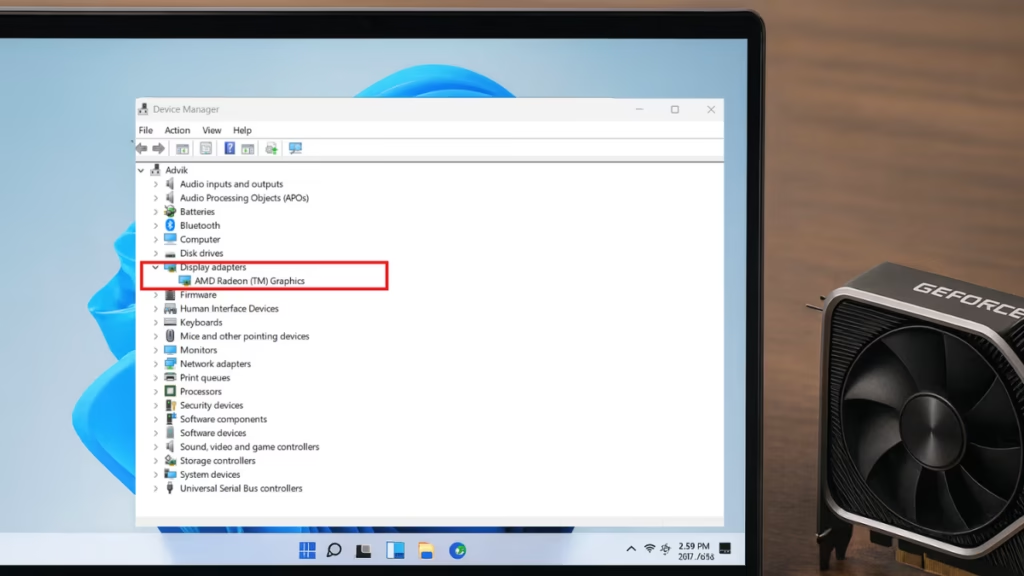
- Press Windows + X → Device Manager.
- Expand Display Adapters.
- Note your GPU name — for example, NVIDIA GeForce RTX 4070, AMD Radeon RX 7800 XT, or Intel Arc A770.
This helps ensure you download the correct driver for your hardware.
Step 2: Uninstall Old or Corrupt Drivers (Optional)
If you’re troubleshooting performance issues or replacing an older card, removing existing drivers can help.
- Open Settings → System → Apps → Installed apps.
- Find and uninstall any NVIDIA, AMD, or Intel graphics software.
- Restart your PC after uninstalling.
Tip: You can use Display Driver Uninstaller (DDU) in Safe Mode for a complete cleanup, but this is optional.
Step 3: Download the Correct Driver
Always download directly from the official GPU manufacturer’s website.
| GPU Brand | Official Download Page |
|---|---|
| NVIDIA | https://www.nvidia.com/Download |
| AMD | https://www.amd.com/en/support |
| Intel Arc / iGPU | https://www.intel.com/content/www/us/en/download-center |
Select your GPU model and Windows 11 (64-bit), then download the latest WHQL-certified driver to ensure it’s stable and digitally signed.
Step 4: Install the Driver
- Run the downloaded .exe file.
- Follow the installation wizard carefully:
- NVIDIA: Choose Express or Custom → Clean Install.
- AMD: Select Install → Factory Reset to overwrite old versions.
- Intel: Use Next → Install → Finish for automatic setup.
- When finished, restart your PC.
Windows 11 may briefly flicker or resize your display during installation—this is normal.
Step 5: Verify the Driver Installation
Once your system restarts:
- Right-click your desktop → open your GPU control app (NVIDIA Control Panel, AMD Adrenalin, or Intel Arc Control).
- Check the driver version and date under the system information section.
- You can also type dxdiag in the Start menu → open the Display tab to confirm the installed version.
Step 6: Use Windows Update or Device Manager (Quick Method)
If you want the easiest installation route:
- Go to Settings → Windows Update → Advanced options → Optional updates to find available GPU drivers.
- Or open Device Manager, right-click your GPU → Update driver → Search automatically for drivers.
Windows 11’s built-in update system now includes GPU driver packages directly from NVIDIA, AMD, and Intel, ensuring safe and compatible installs.
Step 7: Keep Your Drivers Updated Automatically
You can let your GPU software handle updates automatically:
- NVIDIA GeForce Experience – Installs new drivers and optimizes games.
- AMD Adrenalin Edition – Provides updates, monitoring, and tuning.
- Intel Driver & Support Assistant – Detects and installs new versions automatically.
These tools ensure you always have the latest certified drivers without manually checking websites.
Step 8: Fix Compatibility or Security Prompts
If Windows Security blocks a driver during installation, open Windows Security → Device Security → Core Isolation → Memory Integrity and turn it off temporarily.
After your driver installs successfully, re-enable it to maintain protection.
Step 9: Troubleshoot After Updating
If your screen flickers, games stutter, or video playback breaks after a driver update, you can run:
Settings → System → Troubleshoot → Other troubleshooters → Video Playback.
This built-in tool can automatically fix decoding and rendering issues.
Quick Tips: Install Graphics Card Drivers on Windows 11
- Restart your PC after every GPU driver installation.
- Avoid using third-party driver utilities or “booster” tools—they may install unsafe versions.
- Always choose WHQL-certified drivers for the best compatibility and security.
- Keep Windows Update active so you receive GPU-related firmware and patch improvements automatically.