
If you’re trying to install Office on-premises using the Office Deployment Tool (ODT) on a Windows 11 offline system and see this message:
“Couldn’t install. We’re sorry, but we can’t verify the signature of files required to install your Microsoft 365 and Office product.”
Error Code: 30094-2016 (0)
The same installer often works on Windows 10 but fails on Windows 11. Let’s walk through why it happens and how to fix it.
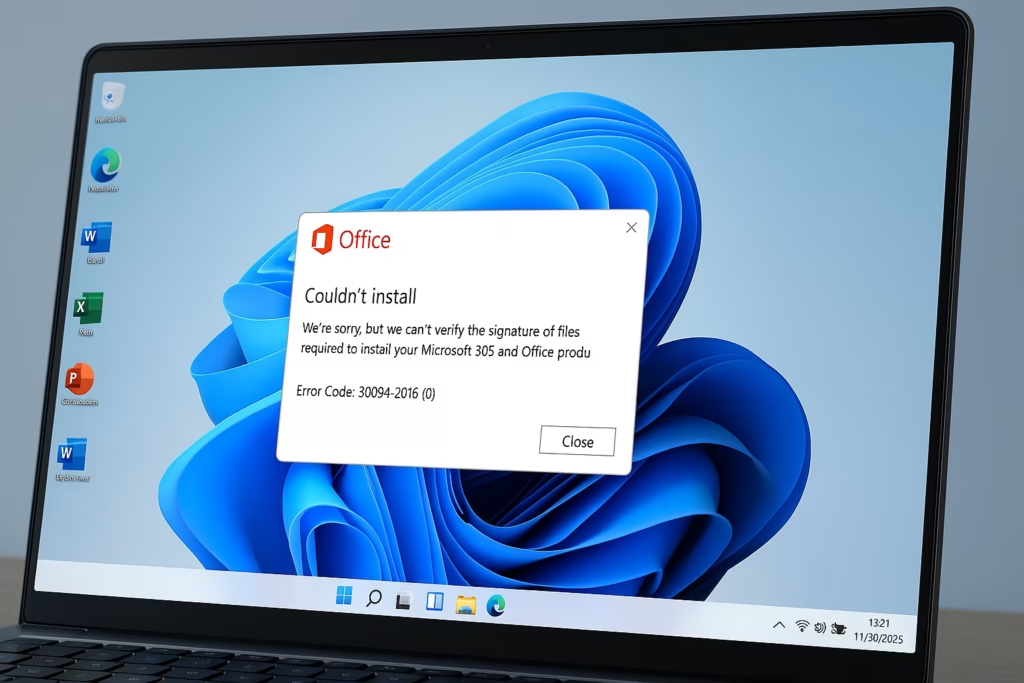
Why the Error Appears
Windows 11 enforces stricter digital-signature checks than Windows 10. When the PC is offline, signature verification can fail because:
- Root or intermediate certificates are outdated or missing.
- The system can’t contact Microsoft’s certificate servers.
- The Office package built with ODT has corrupted or unsigned files.
- SmartScreen or UAC policies block unsigned content.
Fix 1: Import Microsoft Certificates Manually (Offline)
When the machine is offline, Windows can’t update its trusted certificates. You can manually import them from a connected system.
Steps
- On an online Windows 11 PC, open certmgr.msc.
- Navigate to:
- Trusted Root Certification Authorities → Certificates
- Intermediate Certification Authorities → Certificates
- Export these certificates:
- Microsoft Root Certificate Authority
- Microsoft Code Signing PCA
- Microsoft Time-Stamp PCA
- Copy them to the offline PC.
- Double-click each file → Install Certificate → Local Machine → choose the right store (Root or Intermediate).
- Restart and run:
setup.exe /configure configuration.xml
Fix 2: Disable Signature Enforcement Temporarily
If certificates aren’t the issue, turn off integrity checks only for installation.
- Open Command Prompt (Admin).
- Run:
bcdedit /set nointegritychecks on - Reboot and install Office with ODT.
- After installation, re-enable:
bcdedit /set nointegritychecks off
Use this only on secure offline systems.
Fix 3: Rebuild the ODT Package
Old or incomplete ODT builds cause verification errors.
- Download the latest Office Deployment Tool from Microsoft.
- Use the Office Customization Tool to create a fresh
configuration.xml.- Select Office 2021 or Microsoft 365 Apps for Enterprise.
- Choose your architecture and language.
- On an online PC, run:
setup.exe /download configuration.xml - Copy the full downloaded folder to the offline machine.
- Install with:
setup.exe /configure configuration.xml
Fix 4: Adjust Windows 11 Policies
Some security policies can prevent unsigned installers from running.
- Open gpedit.msc →
Computer Configuration → Windows Settings → Security Settings → Local Policies → Security Options. - Set:
- User Account Control: Only elevate executables that are signed and validated → Disabled
- System cryptography: Use FIPS compliant algorithms → Disabled
- Reboot and re-run the installer.
Fix 5: Verify Installer Integrity
Ensure your setup files weren’t corrupted.
- In Command Prompt:
certutil -hashfile setup.exe SHA256 - Compare the hash with Microsoft’s official value.
- If different, redownload the ODT and rebuild the package.
After Successful Installation
Re-enable all security features and confirm your setup:
winverand check certificate health:
certutil -verify setup.exeThe Office installation error 30094-2016 on Windows 11 mainly stems from strict signature verification and missing certificate chains in offline environments. While the same ODT setup may work fine on Windows 10, Windows 11’s newer security model requires updated certificates and verified signatures for installation files.
By manually importing Microsoft root certificates, temporarily disabling signature enforcement, or rebuilding the Office Deployment Tool package, you can safely complete the installation on an offline client. Once the setup is successful, re-enable integrity checks to keep your system secure.
Read More:

