
Parents often struggle when trying to reset their child’s password through family account settings — especially when the option seems missing or doesn’t work. Whether you’re using a Microsoft, Google (Family Link), or Apple Family Sharing setup, here’s how to fix the issue and successfully reset your child’s password.
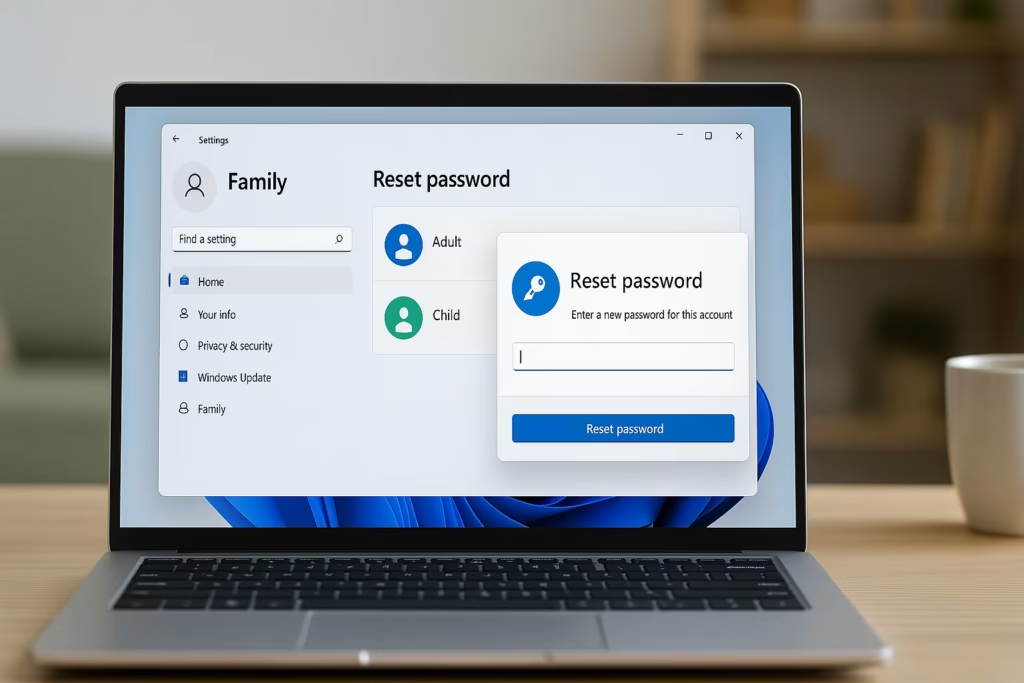
Why You Can’t Reset the Password from Family Settings
When you add a child to your family account, their account is linked under parental supervision. However, some services restrict parents from directly changing passwords to ensure account privacy and security.
This means that depending on the platform — Microsoft, Google, or Apple — you may need to reset the password through the correct family portal rather than the standard “Settings” page.
Fix 1: Reset Child Account Password on Microsoft Family Safety
If your child uses a Microsoft account (Windows 10/11, Xbox, Outlook, etc.), follow these steps:
- Visit the Microsoft Family Safety page and sign in with your parent account.
- Under Your Family, select your child’s account.
- Click Manage family settings online → then open the Microsoft Account Page for your child.
- Under Security, select Password security.
- Click Change password or Reset password.
- If prompted, verify your identity using your Microsoft account.
- Enter the new password and confirm.
- Ask your child to sign out of all devices and log in again with the new password.
Tip: If the system says “You don’t have permission,” you can still reset it using the Microsoft Account Recovery Page.
Fix 2: Reset Child Account Password on Google Family Link
For children supervised through Google Family Link (Android, Chromebook, or Gmail):
- Open the Family Link app on your phone or visit families.google.com.
- Select your child’s account.
- Tap Account settings → Manage settings → Google Account settings.
- Go to Personal info → Password → tap Change.
- Enter your parent password for verification.
- Create a new password for your child’s Google account.
- Restart your child’s device and sign in again using the new credentials.
Tip: If the child’s account is for someone under 13, the reset option might only appear through Family Link, not via Gmail directly.
Fix 3: Apple Family Sharing – Change or Recover Child Password
If your family uses Apple Family Sharing (for iPhone, iPad, or Mac):
- On your iPhone or iPad, go to Settings → tap your name → Family.
- Select your child’s name from the family list.
- Tap Apple Account & Password → Change [Child’s Name] Password.
- Enter your device passcode or Apple ID password to confirm.
- Enter a new password for the child’s Apple ID and save changes.
- Have your child sign in again with the new password on all Apple devices.
Note: If your child has turned 13 (or the regional age of independence), Apple may limit your ability to reset the password — the child will need to reset it themselves via iforgot.apple.com.
Quick Tips for Reset Child Account Password
- Make sure your parent and child accounts are properly linked under Family settings.
- Keep your parent account verified with a recovery phone number and email.
- Always log out of all devices after changing the password to avoid sync issues.
- Use strong passwords (at least 8 characters, mix of letters, numbers, and symbols).
- If you still can’t reset it, contact the platform’s support team directly for verification-based recovery.
Each family management system handles passwords differently. The key is to go through the official family dashboard — not the standard account page. Whether you’re on Microsoft, Google, or Apple, these steps ensure that your child’s account can be securely reset and restored without losing access.
Read More:
- Windows 11 File Sharing Not Working? Full Fix to Connect Two PCs Easily
- How to Install Graphics Card Drivers on Windows 11 (NVIDIA, AMD, Intel Guide)
- Fix Windows 10 ESU Activation Error 0x80041002 — Error Connecting to Local Registry
- How to Promote Windows Server 2022 to Domain Controller in a Windows Server 2008 R2 Forest
- How to Fix Windows Server 2025 Upgrade Error 0xC1900101 – 0x30018 (SYSPREP_SPECIALIZE Phase)