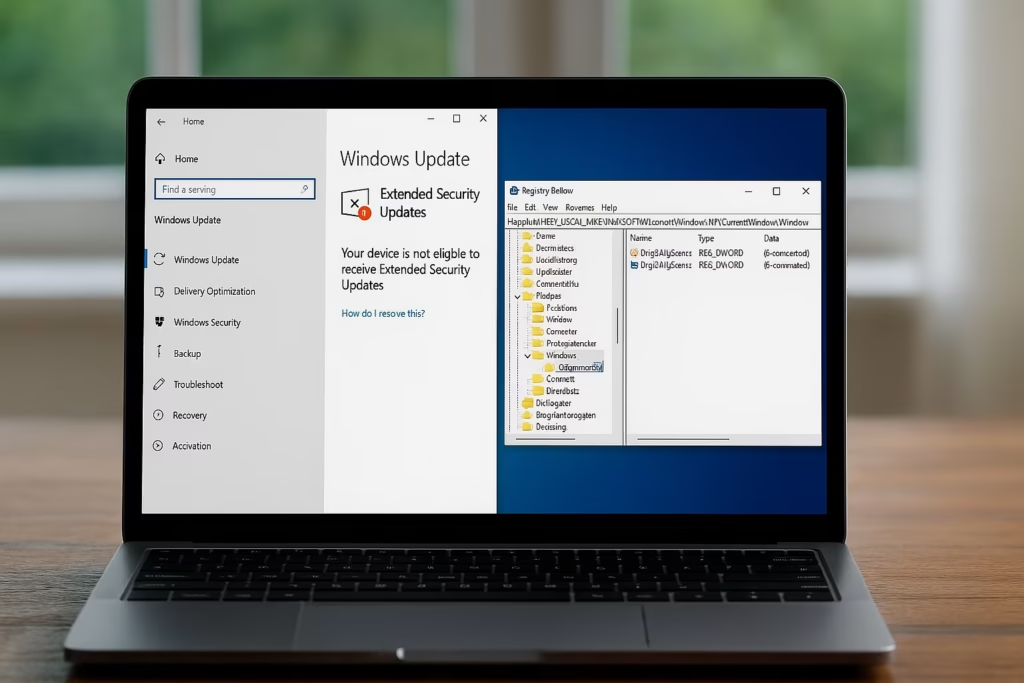
As Windows 10 reaches its end of support (EOL), Microsoft is offering Extended Security Updates (ESU) to help users keep their systems secure beyond the deadline. However, many personal-device owners are seeing this confusing message in their registry:
“(1) Ineligible / (4) Commercial Device”
When this happens, the “Enroll Now for Extended Security Updates” link disappears from Windows Update, preventing you from joining the consumer ESU program. If your PC is not managed by an organization, this guide will show you how to fix the issue step-by-step.
Why Windows Thinks Your PC Is a Commercial Device
This problem occurs when Windows mistakenly identifies your computer as a work-managed or commercial system.
Common triggers include:
- You once signed in with a work or school email under Settings → Accounts → Access work or school
- The device was domain-joined or Azure AD registered at some point
- A registry flag was left over from enterprise configurations
- Your OEM or previous owner used enterprise imaging tools during setup
As a result, the registry sets EligibilityStatus = 4 (CommercialDevice), marking your PC as ineligible for consumer ESU enrollment.
How to Confirm the Problem
- Press Win + R, type
regedit, and hit Enter. - Navigate to:
HKEY_LOCAL_MACHINE\SOFTWARE\Microsoft\Windows NT\CurrentVersion\Windows\ConsumerESU- Check these values:
| Registry Value | Meaning |
|---|---|
EligibilityResult | 1 = Ineligible, 2 = Eligible |
EligibilityStatus | 4 = Commercial Device |
If you see 1 and 4, your PC is being flagged as a commercial device, even though it’s personal.
Fix 1: Disconnect Work or School Account
This is the most common and safest fix.
- Go to Settings → Accounts → Access work or school.
- If any account is listed, select it → Disconnect.
- Restart your computer.
- Open Settings → Windows Update and check if Enroll Now for ESU reappears.
Tip: Even logging in once with a work email (for Office 365 or OneDrive Business) can mark your PC as managed.
Fix 2: Leave Domain or MDM (If Applicable)
- Go to Settings → System → About.
- Under “Organization,” see if it says Domain-joined or Azure AD joined.
- If yes:
- Ask your admin (if any) to remove the device, or
- Open Settings → Accounts → Access work or school → disconnect the account
- Restart and check Windows Update again.
Only workgroup or home PCs qualify for consumer ESU.
Fix 3: Force Windows to Re-evaluate ESU Eligibility
If you’ve already disconnected everything but it still shows “Commercial Device,” try this advanced but safe re-evaluation:
- Run Command Prompt as Administrator.
- Enable telemetry (required by Microsoft’s ESU eligibility tool):
sc config DiagTrack start= auto
sc start DiagTrack- Add a feature-override key:
reg add "HKLM\SYSTEM\CurrentControlSet\Policies\Microsoft\FeatureManagement\Overrides" /v 4011992206 /t REG_DWORD /d 2 /f- Restart your PC.
- Run Windows Update again. The Enroll Now for Extended Security Updates link should appear.
If it still doesn’t, the registry may revert because the system still detects a hidden management enrollment.
Fix 4: Manually Reset Consumer ESU Keys
For experienced users only. Create a System Restore Point first.
- In Registry Editor, go to:
HKEY_LOCAL_MACHINE\SOFTWARE\Microsoft\Windows NT\CurrentVersion\Windows\ConsumerESU- Right-click → Export (backup).
- Then change:
"EligibilityResult"=dword:00000002
"EligibilityStatus"=dword:00000001- Close Regedit and reboot.
- Check Settings → Windows Update again.
Note: Windows may revert these values on reboot if the real cause (domain join or account) remains.
Fix 5: Re-register for Consumer ESU
After confirming you are eligible:
- Sign in with your Microsoft Account (not local).
- Ensure you’re on Windows 10 22H2 and fully updated.
- Go to Settings → Windows Update.
- Click “Enroll Now for Extended Security Updates.”
- Follow the on-screen steps to register your device for the 2025–2028 security extension.
Before You Edit the Registry
- Always create a restore point first (
rstrui.exe). - Editing wrong keys can cause boot or update issues.
- Avoid using third-party “ESU unlock” scripts — they may break future updates.
- Only modify registry entries you fully understand.
If Nothing Works
If the registry still shows CommercialDevice after all steps:
- The system may contain hidden Azure AD registration remnants.
- Some OEM enterprise builds are locked to commercial ESU.
- In that case, consider:
- Installing a clean retail Windows 10 ISO and activating with your digital license, or
- Upgrading to Windows 11 (if hardware allows).
Both will restore full consumer eligibility.
Read More:
- Fix: MSI Raider GE78 HX Scratching Noise & Freezing Issues
- How to Fix Windows 11 Update Error 0x800f0983 (KB5066835 – October 2025 Cumulative Update)
- Fix: Windows 10 “Email Already in Use” When Switching to Microsoft Account
- How to Remove a Failed Printer in Windows 11 When It Says “Connect to Remove”
- How to Reset Child Account Password from Parent Account in Family Settings (Microsoft, Google, Apple Fix Guide)
This issue is frustrating because Microsoft’s registry flags don’t always match how you actually use your PC.
By cleaning up old work accounts and forcing a fresh eligibility check, most users regain the ESU Enroll option without reinstalling Windows.
If you’ve fixed your own “Commercial Device” issue differently, share it in the comments — it can help other users stay protected beyond Windows 10 EOL.